Installatie Omada Controller op APU2-serie (APU3D4)
Een vriend van mij voert binnenkort een upgrade van zijn netwerk uit. De huidige firewall en switches worden vervangen door nieuwe modellen, zodat er in de core op 10G-snelheid geschakeld kan worden.
De firewallfunctie wordt momenteel verzorgd door een APU2-serie embedded x86-systeem van PC Engines waarop pfSense draait. De APU2-serie bestaat uit compacte, energiezuinige embedded x86-systemen met meerdere netwerkaansluitingen, ontworpen voor toepassingen zoals routers, firewalls en andere netwerkdiensten. Er zijn modellen met 2 en 4 GB RAM met varierende modelnamen zoals APU2E0, APU2E2, APU2E4, APU3D2, APU3D4, APU4D2, APU4D4 en APU6B4.
Het zou zonde zijn om dit nog altijd populaire apparaat af te schrijven. Daarom krijgt het een tweede leven als Omada Controller. Momenteel wordt hiervoor een OC200 ingezet, maar die blijkt soms wat beperkt. TP-Link biedt met de OC300 een krachtiger alternatief en heeft tegenwoordig ook de OC220 in het assortiment, die qua positionering tussen beide modellen in valt.
Toch is een APU2-serie in dit geval een aantrekkelijk alternatief. De hardware komt immers beschikbaar en de Omada Controller-software draait er probleemloos op. Bovendien beschikt een APU doorgaans over meer werkgeheugen en aanzienlijk snellere opslag dan de dedicated controllers. Hoewel de OC300 op papier over een krachtigere processor beschikt, biedt een APU in de praktijk ruim voldoende rekenkracht voor de Omada Controller en blijft er bovendien veel meer flexibiliteit over voor toekomstig gebruik.
In deze blogpost beschrijf ik stap voor stap hoe je de Omada Controller installeert op een APU2-serie embedded x86-systeem met Ubuntu Server 24.04.
Consoleverbinding
Een aandachtspunt is dat een APU geen videouitgang heeft. De installatieprocedure wijkt op enkele punten af van een standaard Ubuntu-installatie. De belangrijkste verschillen hebben betrekking op de seriële console en het opstarten van de installer. Hoewel dit op het eerste gezicht een beperking lijkt, is het in de praktijk juist een voordeel: een simpel kabeltje volstaat - er is geen (extra) monitor nodig.
Verbinding maken kan eenvoudig met een USB-naar-serieel (DB9) consolekabel. Zelf gebruik ik hiervoor een kabel die ik eerder heb meegeleverd gekregen bij een APU. Een voorbeeld van dit type kabel is hier te vinden: PC Engines USB serial console cable
Onder Windows kan bijvoorbeeld PuTTY worden gebruikt om via de seriële poort verbinding te maken. Onder Linux gebruik ik meestal tio. Voor deze blogpost is ook tio gebruikt, vanwege de eenvoud en betrouwbaarheid. Het is een robuuste en laagdrempelige manier om toegang te krijgen tot het systeem tijdens installatie en beheer.
Voor APU2 en nieuwere modellen zijn de seriële instellingen als volgt: 115200 baud, 8N1, zonder flow control.
Besturingssysteem
Volgens de vereisten kan worden gekozen tussen Debian 8–9 en Ubuntu 16.04–24.04. In dit geval is gekozen voor Ubuntu 24.04, waarbij de servervariant (ISO) is gebruikt.
De officiële documentatie wordt hieronder als referentie aangehaald, maar deze loopt in de praktijk achter op de huidige softwareversies en installatieprocedure. Juist daarom dient deze blogpost als actuele aanvulling, waarin de stappen worden beschreven op basis van de huidige situatie.
Zodra de ISO is gedownload, kan deze naar een USB-stick worden geschreven. Hiervoor kan bijvoorbeeld dd worden gebruikt, maar tools zoals balenaEtcher zijn een gebruiksvriendelijk alternatief.
Onder Linux kan eerst worden bepaald welk device de USB-stick heeft, bijvoorbeeld met lsblk of dmesg. In mijn geval is dat /dev/sdb - maar dat verschilt per systeem.
Met het volgende commando is de USB-stick vervolgens voorbereid:
dd if=./ubuntu-24.04.4-live-server-amd64.iso of=/dev/sdb bs=4M status=progress conv=fsync
Let op: controleer zorgvuldig naar welk device je schrijft. Een kleine vergissing is snel gemaakt, met als gevolg dat per ongeluk de verkeerde schijf wordt overschreven.
Het commando dd staat officieel voor data duplicator of dataset definition (afhankelijk van de bron), maar wordt in de praktijk ook wel gekscherend data destroyer of disk destroyer genoemd. De exacte betekenis is misschien wat vaag, maar de reputatie is duidelijk: verkeerd gebruik leidt doorgaans tot één uitkomst — doei data.
Bron Omada (by TP-Link): How to install Omada Software Controller on Linux system
Opstarten en installeren
Zodra de USB-stick met Ubuntu 24.04, een netwerkkabel en de consolekabel zijn aangesloten, kan de APU worden gestart. De APU start automatisch zodra de voedingsadapter wordt aangesloten.
Het is aan te raden om eerst de consoleverbinding op te zetten, zodat je direct inzicht hebt in het opstartproces. De console kan al actief worden gemaakt terwijl het systeem nog uit staat, omdat de USB-consoleadapter zelf van spanning wordt voorzien via USB.
Na het aansluiten heb ik eerst gecontroleerd welk device aan de consolekabel is toegewezen. Direct na het inpluggen heb ik dmesg uitgevoerd. De volgende output werd daarbij getoond:
[..]
[1720502.781653] usb 1-4: new full-speed USB device number 10 using xhci_hcd
[1720502.920403] usb 1-4: New USB device found, idVendor=10c4, idProduct=ea60, bcdDevice= 1.00
[1720502.920421] usb 1-4: New USB device strings: Mfr=1, Product=2, SerialNumber=3
[1720502.920429] usb 1-4: Product: CP2104 USB to UART Bridge Controller
[1720502.920435] usb 1-4: Manufacturer: Silicon Labs
[1720502.920441] usb 1-4: SerialNumber: 0205463A
[1720502.922609] cp210x 1-4:1.0: cp210x converter detected
[1720502.924186] usb 1-4: cp210x converter now attached to ttyUSB0
In mijn geval gaat het om /dev/ttyUSB0.
Indien je tio wilt gebruiken, kan deze onder Debian of Ubuntu worden geïnstalleerd met:
sudo apt update && sudo apt -y install tio.
Omdat een standaardgebruiker geen toegang heeft tot seriële devices, start ik de consoleverbinding met sudo:
sudo tio -b 115200 /dev/ttyUSB0
Zodra de verbinding actief is, kan de APU worden ingeschakeld door de stroomadapter aan te sluiten. De opstartoutput verschijnt vervolgens direct in de console.
SeaBIOS (version rel-1.16.0.1-0-g77603a32)

Press F10 key now for boot menu

Select boot device:

1. USB MSC Drive
2. AHCI/0: SATA SSD ATA-11 Hard-Disk (15272 MiBytes)
3. Payload [setup]
4. Payload [memtest]
Druk op F10 voor het bootmenu en kies het USB-apparaat als bootmedium.
Druk op 'e' zodra GRUB wordt getoond.
                             GNU GRUB  version 2.12

 ┌────────────────────────────────────────────────────────────────────────────┐
 │*Try or Install Ubuntu Server                                               │
 │ Ubuntu Server with the HWE kernel                                          │
 │ Test memory                                                                │
 │                                                                            │
 │                                                                            │
 │                                                                            │
 │                                                                            │
 │                                                                            │
 │                                                                            │
 │                                                                            │
 │                                                                            │
 │                                                                            │
 │                                                                            │
 └────────────────────────────────────────────────────────────────────────────┘

      Use the ↑ and ↓ keys to select which entry is highlighted.
      Press enter to boot the selected OS, `e' to edit the commands
      before booting or `c' for a command-line.
Voeg vervolgens de verbindingsgegevens voor de console in. Het gaat specifiek om console=ttyS0,115200n8 achter /casper/vmlinuz maar voor ---. Druk tot slot F10 om met deze parameters te starten.
Deze parameter zorgt ervoor dat de Linux-kernel zijn console-uitvoer naar de seriële poort stuurt. Zonder deze aanpassing blijft de installatie wel functioneren, maar is er via de seriële console geen bruikbare uitvoer zichtbaar.
                             GNU GRUB  version 2.12

 ┌────────────────────────────────────────────────────────────────────────────┐
 │setparams 'Try or Install Ubuntu Server'                                    │
 │                                                                            │
 │        set gfxpayload=keep                                                 │
 │        linux        /casper/vmlinuz console=ttyS0,115200n8 ---             │
 │        initrd        /casper/initrd                                        │
 │                                                                            │
 │                                                                            │
 │                                                                            │
 │                                                                            │
 │                                                                            │
 │                                                                            │
 │                                                                            │
 │                                                                            │
 └────────────────────────────────────────────────────────────────────────────┘

      Minimum Emacs-like screen editing is supported. TAB lists
      completions. Press Ctrl-x or F10 to boot, Ctrl-c or F2 for
      a command-line or ESC to discard edits and return to the GRUB menu.
Vervolgens wordt gevraagd om een keuze te maken tussen rich of basic serial console mode. Ik heb voor rich mode gekozen - maar beide werken prima.
================================================================================
  Serial                                                              [ Help ]
================================================================================

  As the installer is running on a serial console, it has started in basic
  mode, using only the ASCII character set and black and white colours.

  If you are connecting from a terminal emulator such as gnome-terminal that
  supports unicode and rich colours you can switch to "rich mode" which uses
  unicode, colours and supports many languages.

  You can also connect to the installer over the network via SSH, which will
  allow use of rich mode.

                          [ Continue in rich mode  > ]
                          [ Continue in basic mode > ]
                          [ View SSH instructions    ]
Voor de taal heb ik voor de standaard gekozen: Engels.
▄▄▄▄▄▄▄▄▄▄▄▄▄▄▄▄▄▄▄▄▄▄▄▄▄▄▄▄▄▄▄▄▄▄▄▄▄▄▄▄▄▄▄▄▄▄▄▄▄▄▄▄▄▄▄▄▄▄▄▄▄▄▄▄▄▄▄▄▄▄▄▄▄▄▄▄▄▄▄▄
  Willkommen! Bienvenue! Welcome! Добро пожаловать! Welkom!           [ Help ]
▀▀▀▀▀▀▀▀▀▀▀▀▀▀▀▀▀▀▀▀▀▀▀▀▀▀▀▀▀▀▀▀▀▀▀▀▀▀▀▀▀▀▀▀▀▀▀▀▀▀▀▀▀▀▀▀▀▀▀▀▀▀▀▀▀▀▀▀▀▀▀▀▀▀▀▀▀▀▀▀
  Use UP, DOWN and ENTER keys to select your language.

                [ Asturianu                                 ▸ ]▴
                [ Bahasa Indonesia                          ▸ ]█
                [ Català                                    ▸ ]
                [ Deutsch                                   ▸ ]
                [ English                                   ▸ ]
                [ English (UK)                              ▸ ]
                [ Español                                   ▸ ]
                [ Français                                  ▸ ]
                [ Galego                                    ▸ ]
                [ Hrvatski                                  ▸ ]
                [ Latviski                                  ▸ ]
                [ Lietuviškai                               ▸ ]
                [ Magyar                                    ▸ ]
                [ Nederlands                                ▸ ]
                [ Norsk bokmål                              ▸ ]
                [ Occitan                                   ▸ ]▾

                                 [ Back       ]
Het bleek dat er een nieuwe versie van de installere beschikbaar is. Ik heb gekozen om deze te gebruiken.
▄▄▄▄▄▄▄▄▄▄▄▄▄▄▄▄▄▄▄▄▄▄▄▄▄▄▄▄▄▄▄▄▄▄▄▄▄▄▄▄▄▄▄▄▄▄▄▄▄▄▄▄▄▄▄▄▄▄▄▄▄▄▄▄▄▄▄▄▄▄▄▄▄▄▄▄▄▄▄▄
  Installer update available                                          [ Help ]
▀▀▀▀▀▀▀▀▀▀▀▀▀▀▀▀▀▀▀▀▀▀▀▀▀▀▀▀▀▀▀▀▀▀▀▀▀▀▀▀▀▀▀▀▀▀▀▀▀▀▀▀▀▀▀▀▀▀▀▀▀▀▀▀▀▀▀▀▀▀▀▀▀▀▀▀▀▀▀▀
  Version 24.04.4.1 of the installer is now available (24.04.4 is currently
  running).

  You can read the release notes for each version at:

                 https://github.com/canonical/subiquity/releases

  If you choose to update, the update will be downloaded and the installation
  will continue from here.

                        [ Update to the new installer ]
                        [ Continue without updating   ]
                        [ Back

▄▄▄▄▄▄▄▄▄▄▄▄▄▄▄▄▄▄▄▄▄▄▄▄▄▄▄▄▄▄▄▄▄▄▄▄▄▄▄▄▄▄▄▄▄▄▄▄▄▄▄▄▄▄▄▄▄▄▄▄▄▄▄▄▄▄▄▄▄▄▄▄▄▄▄▄▄▄▄▄
  Downloading update...                                               [ Help ]
▀▀▀▀▀▀▀▀▀▀▀▀▀▀▀▀▀▀▀▀▀▀▀▀▀▀▀▀▀▀▀▀▀▀▀▀▀▀▀▀▀▀▀▀▀▀▀▀▀▀▀▀▀▀▀▀▀▀▀▀▀▀▀▀▀▀▀▀▀▀▀▀▀▀▀▀▀▀▀▀
  Please wait while the updated installer is being downloaded. The installer
  will restart automatically when the download is complete.

   Monitoring snap "subiquity" to determine whether extra refresh steps are \
   Mount snap "subiquity" (7187)
Daarop volgde de toetsenbord-layout. Ik heb voor de standaard gekozen: English (US).
▄▄▄▄▄▄▄▄▄▄▄▄▄▄▄▄▄▄▄▄▄▄▄▄▄▄▄▄▄▄▄▄▄▄▄▄▄▄▄▄▄▄▄▄▄▄▄▄▄▄▄▄▄▄▄▄▄▄▄▄▄▄▄▄▄▄▄▄▄▄▄▄▄▄▄▄▄▄▄▄
  Keyboard configuration                                              [ Help ]
▀▀▀▀▀▀▀▀▀▀▀▀▀▀▀▀▀▀▀▀▀▀▀▀▀▀▀▀▀▀▀▀▀▀▀▀▀▀▀▀▀▀▀▀▀▀▀▀▀▀▀▀▀▀▀▀▀▀▀▀▀▀▀▀▀▀▀▀▀▀▀▀▀▀▀▀▀▀▀▀
  Please select the layout of the keyboard directly attached to the system, if
  any.

                 Layout:  [ English (US)                     ▾ ]

                Variant:  [ English (US)                     ▾ ]

                                 [ Done       ]
                                 [ Back       ]
Het installatietype is een belangrijk onderdeel. In verband met de opslagcapaciteit van de APU, heb ik gekozen voor Ubuntu Server (minimized).
Omdat de APU over beperkte opslagcapaciteit beschikt en uitsluitend als Omada Controller wordt ingezet, is gekozen voor de minimale installatie. Hierdoor worden minder pakketten geïnstalleerd en blijft meer opslagruimte beschikbaar voor het besturingssysteem, logbestanden en toekomstige updates.
▄▄▄▄▄▄▄▄▄▄▄▄▄▄▄▄▄▄▄▄▄▄▄▄▄▄▄▄▄▄▄▄▄▄▄▄▄▄▄▄▄▄▄▄▄▄▄▄▄▄▄▄▄▄▄▄▄▄▄▄▄▄▄▄▄▄▄▄▄▄▄▄▄▄▄▄▄▄▄▄
  Choose the type of installation                                     [ Help ]
▀▀▀▀▀▀▀▀▀▀▀▀▀▀▀▀▀▀▀▀▀▀▀▀▀▀▀▀▀▀▀▀▀▀▀▀▀▀▀▀▀▀▀▀▀▀▀▀▀▀▀▀▀▀▀▀▀▀▀▀▀▀▀▀▀▀▀▀▀▀▀▀▀▀▀▀▀▀▀▀
  Choose the base for the installation.

  ( )  Ubuntu Server                                                         ▴
                                                                             █
       The default install contains a curated set of packages that provide a █
       comfortable experience for operating your server.                     █
                                                                             █
  (X)  Ubuntu Server (minimized)                                             █
                                                                             █
       This version has been customized to have a small runtime footprint in █
       environments where humans are not expected to log in.                 █
                                                                             █
  Additional options                                                         █
                                                                             █
  [ ]  Search for third-party drivers

       This software is subject to license terms included with its           ▾

                                 [ Done       ]
                                 [ Back       ]
Voor de netwerk, proxy en installatie-mirror ben ik uitgegaan van de voorgeselecteerde standaardopties.
▄▄▄▄▄▄▄▄▄▄▄▄▄▄▄▄▄▄▄▄▄▄▄▄▄▄▄▄▄▄▄▄▄▄▄▄▄▄▄▄▄▄▄▄▄▄▄▄▄▄▄▄▄▄▄▄▄▄▄▄▄▄▄▄▄▄▄▄▄▄▄▄▄▄▄▄▄▄▄▄
  Network configuration                                               [ Help ]
▀▀▀▀▀▀▀▀▀▀▀▀▀▀▀▀▀▀▀▀▀▀▀▀▀▀▀▀▀▀▀▀▀▀▀▀▀▀▀▀▀▀▀▀▀▀▀▀▀▀▀▀▀▀▀▀▀▀▀▀▀▀▀▀▀▀▀▀▀▀▀▀▀▀▀▀▀▀▀▀
  Configure at least one interface this server can use to talk to other
  machines, and which preferably provides sufficient access for updates.

    NAME      TYPE    NOTES
  [ enp1s0    eth     -                 ▸ ]
    DHCPv4    10.32.35.183/22
    00:0d:b9:48:3b:b4 / Intel Corporation / I211 Gigabit Network Connection

  [ enp2s0    eth     -                 ▸ ]
    disabled  autoconfiguration failed
    00:0d:b9:48:3b:b5 / Intel Corporation / I211 Gigabit Network Connection

  [ enp3s0    eth     -                 ▸ ]
    disabled  autoconfiguration failed
    00:0d:b9:48:3b:b6 / Intel Corporation / I211 Gigabit Network Connection

  [ Create bond ▸ ]

                                 [ Done       ]
                                 [ Back       ]
In mijn geval is de eerste netwerkinterface verbonden met het netwerk.
▄▄▄▄▄▄▄▄▄▄▄▄▄▄▄▄▄▄▄▄▄▄▄▄▄▄▄▄▄▄▄▄▄▄▄▄▄▄▄▄▄▄▄▄▄▄▄▄▄▄▄▄▄▄▄▄▄▄▄▄▄▄▄▄▄▄▄▄▄▄▄▄▄▄▄▄▄▄▄▄
  Proxy configuration                                                 [ Help ]
▀▀▀▀▀▀▀▀▀▀▀▀▀▀▀▀▀▀▀▀▀▀▀▀▀▀▀▀▀▀▀▀▀▀▀▀▀▀▀▀▀▀▀▀▀▀▀▀▀▀▀▀▀▀▀▀▀▀▀▀▀▀▀▀▀▀▀▀▀▀▀▀▀▀▀▀▀▀▀▀
  If this system requires a proxy to connect to the internet, enter its
  details here.

  Proxy address:
                  If you need to use a HTTP proxy to access the outside world,
                  enter the proxy information here. Otherwise, leave this
                  blank.

                  The proxy information should be given in the standard form
                  of "http://[[user][:pass]@]host[:port]/".

                                 [ Done       ]
                                 [ Back       ]
Ik maak gebruik van een directe verbinding met internet - zonder tussenkomst van een web proxy.
▄▄▄▄▄▄▄▄▄▄▄▄▄▄▄▄▄▄▄▄▄▄▄▄▄▄▄▄▄▄▄▄▄▄▄▄▄▄▄▄▄▄▄▄▄▄▄▄▄▄▄▄▄▄▄▄▄▄▄▄▄▄▄▄▄▄▄▄▄▄▄▄▄▄▄▄▄▄▄▄
  Ubuntu archive mirror configuration                                 [ Help ]
▀▀▀▀▀▀▀▀▀▀▀▀▀▀▀▀▀▀▀▀▀▀▀▀▀▀▀▀▀▀▀▀▀▀▀▀▀▀▀▀▀▀▀▀▀▀▀▀▀▀▀▀▀▀▀▀▀▀▀▀▀▀▀▀▀▀▀▀▀▀▀▀▀▀▀▀▀▀▀▀
  If you use an alternative mirror for Ubuntu, enter its details here.

  Mirror address:  http://nl.archive.ubuntu.com/ubuntu/
                   You may provide an archive mirror to be used instead of the
                   default.

  The mirror location is being tested. /

  ┌──────────────────────────────────────────────────────────────────────────┐
  │Hit:1 http://nl.archive.ubuntu.com/ubuntu noble InRelease                 │
  │Get:2 http://nl.archive.ubuntu.com/ubuntu noble-updates InRelease [126 kB]│
  │Get:3 http://nl.archive.ubuntu.com/ubuntu noble-backports InRelease [126  │
  │kB]                                                                       │
  │                                                                          │
  │                                                                          │
  │                                                                          │
  └──────────────────────────────────────────────────────────────────────────┘

                                 [ Done       ]
                                 [ Back       ]
Het kan even duren voordat de mirror-test is uitgevoerd...
▄▄▄▄▄▄▄▄▄▄▄▄▄▄▄▄▄▄▄▄▄▄▄▄▄▄▄▄▄▄▄▄▄▄▄▄▄▄▄▄▄▄▄▄▄▄▄▄▄▄▄▄▄▄▄▄▄▄▄▄▄▄▄▄▄▄▄▄▄▄▄▄▄▄▄▄▄▄▄▄
  Ubuntu archive mirror configuration                                 [ Help ]
▀▀▀▀▀▀▀▀▀▀▀▀▀▀▀▀▀▀▀▀▀▀▀▀▀▀▀▀▀▀▀▀▀▀▀▀▀▀▀▀▀▀▀▀▀▀▀▀▀▀▀▀▀▀▀▀▀▀▀▀▀▀▀▀▀▀▀▀▀▀▀▀▀▀▀▀▀▀▀▀
  If you use an alternative mirror for Ubuntu, enter its details here.

  Mirror address:  http://nl.archive.ubuntu.com/ubuntu/
                   You may provide an archive mirror to be used instead of the
                   default.

  This mirror location passed tests.

  ┌──────────────────────────────────────────────────────────────────────────┐
  │Hit:1 http://nl.archive.ubuntu.com/ubuntu noble InRelease                 │
  │Get:2 http://nl.archive.ubuntu.com/ubuntu noble-updates InRelease [126 kB]│
  │Get:3 http://nl.archive.ubuntu.com/ubuntu noble-backports InRelease [126  │
  │kB]                                                                       │
  │Fetched 252 kB in 1s (170 kB/s)                                           │
  │Reading package lists...                                                  │
  │                                                                          │
  └──────────────────────────────────────────────────────────────────────────┘

                                 [ Done       ]
                                 [ Back       ]
Voor de opslagconfiguratie heb ik de interne opslag geselecteerd. Verder heb ik gekozen voor de standaardinstellingen.
Let op: de gekozen opslagconfiguratie wist alle bestaande gegevens op de interne SSD. Controleer daarom zorgvuldig of de juiste schijf is geselecteerd voordat de installatie wordt voortgezet.
▄▄▄▄▄▄▄▄▄▄▄▄▄▄▄▄▄▄▄▄▄▄▄▄▄▄▄▄▄▄▄▄▄▄▄▄▄▄▄▄▄▄▄▄▄▄▄▄▄▄▄▄▄▄▄▄▄▄▄▄▄▄▄▄▄▄▄▄▄▄▄▄▄▄▄▄▄▄▄▄
  Guided storage configuration                                        [ Help ]
▀▀▀▀▀▀▀▀▀▀▀▀▀▀▀▀▀▀▀▀▀▀▀▀▀▀▀▀▀▀▀▀▀▀▀▀▀▀▀▀▀▀▀▀▀▀▀▀▀▀▀▀▀▀▀▀▀▀▀▀▀▀▀▀▀▀▀▀▀▀▀▀▀▀▀▀▀▀▀▀
  Configure a guided storage layout, or create a custom one:

  (X)  Use an entire disk                                                    ▴
                                                                             █
       [ SATA_SSD_D8B local disk 14.914G                                  ▾ ]█
         307761633046                                                        █
         54112                                                               █
                                                                             █
       [X]  Set up this disk as an LVM group                                 █
                                                                             █
            [ ]  Encrypt the LVM group with LUKS                             █

                         Passphrase:

                 Confirm passphrase:
                                                                             ▾

                                 [ Done       ]
                                 [ Back       ]
De volgende schermen geven opties voor verdere verfijning. Ik heb gekozen om uit te gaan van de standaardinstellingen.
▄▄▄▄▄▄▄▄▄▄▄▄▄▄▄▄▄▄▄▄▄▄▄▄▄▄▄▄▄▄▄▄▄▄▄▄▄▄▄▄▄▄▄▄▄▄▄▄▄▄▄▄▄▄▄▄▄▄▄▄▄▄▄▄▄▄▄▄▄▄▄▄▄▄▄▄▄▄▄▄
  Storage configuration                                               [ Help ]
▀▀▀▀▀▀▀▀▀▀▀▀▀▀▀▀▀▀▀▀▀▀▀▀▀▀▀▀▀▀▀▀▀▀▀▀▀▀▀▀▀▀▀▀▀▀▀▀▀▀▀▀▀▀▀▀▀▀▀▀▀▀▀▀▀▀▀▀▀▀▀▀▀▀▀▀▀▀▀▀
  FILE SYSTEM SUMMARY                                                        ▴
                                                                             █
    MOUNT POINT     SIZE    TYPE      DEVICE TYPE
  [ /              10.000G  new ext4  new LVM logical volume      ▸ ]
  [ /boot           1.750G  new ext4  new partition of local disk ▸ ]

  AVAILABLE DEVICES

    DEVICE                                   TYPE                 SIZE
  [ ubuntu-vg (new)                          LVM volume group    13.160G  ▸ ]
    free space                                                    3.160G  ▸

  [ VendorCo_ProductCode_292509105547346457  local disk          14.648G  ▸ ]
    5-0:0
    partition 2  existing, unused ESP, already formatted as       4.960M  ▸  ▾

                                 [ Done       ]
                                 [ Reset      ]
                                 [ Back       ]
De partities worden gemaakt zodra voor 'Continue' is gekozen.
▄▄▄▄▄▄▄▄▄▄▄▄▄▄▄▄▄▄▄▄▄▄▄▄▄▄▄▄▄▄▄▄▄▄▄▄▄▄▄▄▄▄▄▄▄▄▄▄▄▄▄▄▄▄▄▄▄▄▄▄▄▄▄▄▄▄▄▄▄▄▄▄▄▄▄▄▄▄▄▄
  Storage configuration                                               [ Help ]
▀▀▀▀▀▀▀▀▀▀▀▀▀▀▀▀▀▀▀▀▀▀▀▀▀▀▀▀▀▀▀▀▀▀▀▀▀▀▀▀▀▀▀▀▀▀▀▀▀▀▀▀▀▀▀▀▀▀▀▀▀▀▀▀▀▀▀▀▀▀▀▀▀▀▀▀▀▀▀▀
    DEVICE                                   TYPE                 SIZE       ▴
  [ ubuntu-vg (new)                          LVM volume group    13.160G  ▸ ]

   ┌────────────────────── Confirm destructive action ──────────────────────┐
   │                                                                        │
   │  Selecting Continue below will begin the installation process and      │
   │  result in the loss of data on the disks selected to be formatted.     │
   │                                                                        │
   │  You will not be able to return to this or a previous screen once the  │
   │  installation has started.                                             │
   │                                                                        │
   │  Are you sure you want to continue?                                    │
   │                                                                        │
   │                             [ No         ]                             │
   │                             [ Continue   ]                             │
   │                                                                        │
   └────────────────────────────────────────────────────────────────────────┘

                                 [ Reset      ]
                                 [ Back       ]
Bij server name heb ik gekozen voor oc01 (Omada Controller #1) - maar je kunt hier een naam naar keuze invoeren.
Ubuntu werkt met een standaard gebruiker die met het commando sudo root-rechten kan verkrijgen. Je kunt hier een gebruiker naar keuze aanmaken. Ik heb gekozen voor gebruiker main (Maintenance User).
▄▄▄▄▄▄▄▄▄▄▄▄▄▄▄▄▄▄▄▄▄▄▄▄▄▄▄▄▄▄▄▄▄▄▄▄▄▄▄▄▄▄▄▄▄▄▄▄▄▄▄▄▄▄▄▄▄▄▄▄▄▄▄▄▄▄▄▄▄▄▄▄▄▄▄▄▄▄▄▄
  Profile configuration                                               [ Help ]
▀▀▀▀▀▀▀▀▀▀▀▀▀▀▀▀▀▀▀▀▀▀▀▀▀▀▀▀▀▀▀▀▀▀▀▀▀▀▀▀▀▀▀▀▀▀▀▀▀▀▀▀▀▀▀▀▀▀▀▀▀▀▀▀▀▀▀▀▀▀▀▀▀▀▀▀▀▀▀▀
  Enter the username and password you will use to log in to the system. You
  can configure SSH access on a later screen, but a password is still needed
  for sudo.

              Your name:  Maintenance User

      Your servers name:  oc01
                          The name it uses when it talks to other computers.

        Pick a username:  main

      Choose a password:  ********

  Confirm your password:  ********

                                 [ Done       ]
Ik heb ervoor gekozen om Ubuntu Pro over te slaan.
Ubuntu 24.04 is een LTS-release (Long Term Support) die standaard wordt ondersteund tot april 2029. Met Ubuntu Pro wordt deze ondersteuningsperiode uitgebreid door middel van Expanded Security Maintenance (ESM), waardoor beveiligingsupdates beschikbaar blijven tot april 2036.
Voor deze toepassing vind ik de standaard ondersteuningsperiode op dit moment ruim voldoende en heb ik Ubuntu Pro daarom niet geactiveerd.
▄▄▄▄▄▄▄▄▄▄▄▄▄▄▄▄▄▄▄▄▄▄▄▄▄▄▄▄▄▄▄▄▄▄▄▄▄▄▄▄▄▄▄▄▄▄▄▄▄▄▄▄▄▄▄▄▄▄▄▄▄▄▄▄▄▄▄▄▄▄▄▄▄▄▄▄▄▄▄▄
  Upgrade to Ubuntu Pro                                               [ Help ]
▀▀▀▀▀▀▀▀▀▀▀▀▀▀▀▀▀▀▀▀▀▀▀▀▀▀▀▀▀▀▀▀▀▀▀▀▀▀▀▀▀▀▀▀▀▀▀▀▀▀▀▀▀▀▀▀▀▀▀▀▀▀▀▀▀▀▀▀▀▀▀▀▀▀▀▀▀▀▀▀
  Upgrade this machine to Ubuntu Pro for security updates on a much wider
  range of packages, until 2034. Assists with FedRAMP, FIPS, STIG, HIPAA and
  other compliance or hardening requirements.

  [ About Ubuntu Pro ▸ ]

  ( )  Enable Ubuntu Pro

  (X)  Skip for now

       You can always enable Ubuntu Pro later using the 'pro attach' command.

                                 [ Continue   ]
                                 [ Back       ]
Het is handig om via OpenSSH met de controller te kunnen verbinden - bijvoorbeeld voor de installatie van updates.
▄▄▄▄▄▄▄▄▄▄▄▄▄▄▄▄▄▄▄▄▄▄▄▄▄▄▄▄▄▄▄▄▄▄▄▄▄▄▄▄▄▄▄▄▄▄▄▄▄▄▄▄▄▄▄▄▄▄▄▄▄▄▄▄▄▄▄▄▄▄▄▄▄▄▄▄▄▄▄▄
  SSH configuration                                                   [ Help ]
▀▀▀▀▀▀▀▀▀▀▀▀▀▀▀▀▀▀▀▀▀▀▀▀▀▀▀▀▀▀▀▀▀▀▀▀▀▀▀▀▀▀▀▀▀▀▀▀▀▀▀▀▀▀▀▀▀▀▀▀▀▀▀▀▀▀▀▀▀▀▀▀▀▀▀▀▀▀▀▀
  You can choose to install the OpenSSH server package to enable secure remote
  access to your server.

  [X]  Install OpenSSH server

  [X]  Allow password authentication over SSH

  [ Import SSH key ▸ ]

  AUTHORIZED KEYS

    No authorized key

                                 [ Done       ]
                                 [ Back       ]
Ik heb geen aanvullende opties geselecteerd.
▄▄▄▄▄▄▄▄▄▄▄▄▄▄▄▄▄▄▄▄▄▄▄▄▄▄▄▄▄▄▄▄▄▄▄▄▄▄▄▄▄▄▄▄▄▄▄▄▄▄▄▄▄▄▄▄▄▄▄▄▄▄▄▄▄▄▄▄▄▄▄▄▄▄▄▄▄▄▄▄
  Featured server snaps                                               [ Help ]
▀▀▀▀▀▀▀▀▀▀▀▀▀▀▀▀▀▀▀▀▀▀▀▀▀▀▀▀▀▀▀▀▀▀▀▀▀▀▀▀▀▀▀▀▀▀▀▀▀▀▀▀▀▀▀▀▀▀▀▀▀▀▀▀▀▀▀▀▀▀▀▀▀▀▀▀▀▀▀▀
  These are popular snaps in server environments. Select or deselect with
  SPACE, press ENTER to see more details of the package, publisher and
  versions available.

  [ ] microk8s            Kubernetes for workstations and appliances        ▸▴
  [ ] nextcloud           Nextcloud Server - A safe home for all your data  ▸█
  [ ] wekan               Open-Source kanban                                ▸█
  [ ] canonical-livepatch Canonical Livepatch Client                        ▸█
  [ ] rocketchat-server   Rocket.Chat server                                ▸█
  [ ] mosquitto           Eclipse Mosquitto MQTT broker                     ▸█
  [ ] etcd                Resilient key-value store by CoreOS               ▸█
  [ ] powershell          PowerShell for every system!                      ▸█
  [ ] sabnzbd             SABnzbd - The automated Usenet download tool      ▸█
  [ ] wormhole            get things from one computer to another, safely   ▸█
  [ ] aws-cli             Universal Command Line Interface for Amazon Web S ▸
  [ ] slcli               Python based SoftLayer API Tool.                  ▸
  [ ] doctl               The official DigitalOcean command line interface  ▸▾

                                 [ Done       ]
                                 [ Back       ]
Het uiteindelijke installatieproces duurt de nodige minuten.
▄▄▄▄▄▄▄▄▄▄▄▄▄▄▄▄▄▄▄▄▄▄▄▄▄▄▄▄▄▄▄▄▄▄▄▄▄▄▄▄▄▄▄▄▄▄▄▄▄▄▄▄▄▄▄▄▄▄▄▄▄▄▄▄▄▄▄▄▄▄▄▄▄▄▄▄▄▄▄▄
  Installing system                                                   [ Help ]
▀▀▀▀▀▀▀▀▀▀▀▀▀▀▀▀▀▀▀▀▀▀▀▀▀▀▀▀▀▀▀▀▀▀▀▀▀▀▀▀▀▀▀▀▀▀▀▀▀▀▀▀▀▀▀▀▀▀▀▀▀▀▀▀▀▀▀▀▀▀▀▀▀▀▀▀▀▀▀▀
  ┌──────────────────────────────────────────────────────────────────────────┐
  │     curtin command extract                                              ▴│
  │      acquiring and extracting image from cp:///tmp/tmp2wlhqspg/mount     │
  │ configuring keyboard                                                     │
  │  curtin command in-target                                                │
  │ executing curtin install curthooks step                                  │
  │  curtin command install                                                  │
  │   configuring installed system                                           │
  │    running 'curtin curthooks'                                            │
  │     curtin command curthooks                                             │
  │      configuring apt configuring apt                                     │
  │      installing missing packages                                         │
  │      Installing packages on target system: ['grub-pc']                   │
  │      configuring iscsi service                                           │
  │      configuring raid (mdadm) service                                    │
  │      configuring NVMe over TCP                                          █│
  │      installing kernel \                                                ▾│
  └──────────────────────────────────────────────────────────────────────────┘

                               [ View full log ]
Aan het einde van het proces is Ubuntu geïnstalleerd en moet de APU herstart worden.
▄▄▄▄▄▄▄▄▄▄▄▄▄▄▄▄▄▄▄▄▄▄▄▄▄▄▄▄▄▄▄▄▄▄▄▄▄▄▄▄▄▄▄▄▄▄▄▄▄▄▄▄▄▄▄▄▄▄▄▄▄▄▄▄▄▄▄▄▄▄▄▄▄▄▄▄▄▄▄▄
  Installation complete!                                              [ Help ]
▀▀▀▀▀▀▀▀▀▀▀▀▀▀▀▀▀▀▀▀▀▀▀▀▀▀▀▀▀▀▀▀▀▀▀▀▀▀▀▀▀▀▀▀▀▀▀▀▀▀▀▀▀▀▀▀▀▀▀▀▀▀▀▀▀▀▀▀▀▀▀▀▀▀▀▀▀▀▀▀
  ┌──────────────────────────────────────────────────────────────────────────┐
  │final system configuration                                               ▴│
  │ curtin command in-target                                                 │
  │ curtin command in-target                                                 │
  │ calculating extra packages to install                                    │
  │ installing openssh-server                                                │
  │  retrieving openssh-server                                               │
  │  curtin command system-install                                           │
  │  unpacking openssh-server                                                │
  │  curtin command system-install                                           │
  │ configuring cloud-init                                                   │
  │ downloading and installing security updates                              │
  │  curtin command in-target                                                │
  │ restoring apt configuration                                              │
  │  curtin command in-target                                               █│
  │subiquity/Late/run:                                                      ▾│
  └──────────────────────────────────────────────────────────────────────────┘

                               [ View full log ]
                               [ Reboot Now    ]
Verwijder de USB stick en druk op ENTER om opnieuw op te starten.
Ubuntu 24.04.4 LTS ubuntu-server ttyS0
connecting...
waiting for cloud-init...
Ubuntu 24.04.4 LTS ubuntu-server ttyS0
connecting...
[FAILED] Failed unmounting cdrom.mount - /cdrom.
Please remove the installation medium, then press ENTER:
Na de herstart kun je inloggen.
Ubuntu 24.04.4 LTS oc01 ttyS0

[..]
oc01 login: main
Password:
Boven de prompt wordt informatie weergegeven. Voor nieuwe gebruikers zijn de commando's sudo en man nuttig.
Welcome to Ubuntu 24.04.4 LTS (GNU/Linux 6.8.0-124-generic x86_64)

 * Documentation:  https://help.ubuntu.com
 * Management:     https://landscape.canonical.com
 * Support:        https://ubuntu.com/pro

This system has been minimized by removing packages and content that are
not required on a system that users do not log into.

To restore this content, you can run the 'unminimize' command.

The programs included with the Ubuntu system are free software;
the exact distribution terms for each program are described in the
individual files in /usr/share/doc/*/copyright.

Ubuntu comes with ABSOLUTELY NO WARRANTY, to the extent permitted by
applicable law.

To run a command as administrator (user "root"), use "sudo <command>".
See "man sudo_root" for details.

main@oc01:~$
Optimalisaties
Ondanks de keuze voor Ubuntu Server (minimized) zijn er een aantal onderdelen die op voorhand verwijderd kunnen worden. Voorbeelden zijn cloud-init en snapd.
Ik heb de onderstaande commando's uitgevoerd om één en ander te verwijderen. Tot slot voeg ik de editor nano en het pakket net-tools toe en worden updates geïnstalleerd.
$ sudo apt update

$ sudo apt -y purge cloud-init
$ sudo rm -rf /etc/cloud /var/lib/cloud

$ sudo apt -y purge snapd
$ sudo rm -rf /snap /var/snap /var/lib/snapd

$ sudo systemctl disable --now packagekit.service
$ sudo apt -y purge packagekit

$ sudo systemctl disable --now multipathd.service
$ sudo apt -y purge multipath-tools

$ sudo apt -y purge apport

$ sudo apt -y autoremove

$ sudo apt -y install nano
$ sudo apt -y install net-tools

$ sudo apt -y full-upgrade
Om veelvuldig schrijven te vermijden heb ik de variabele swappiness op 10 ingesteld.
echo "vm.swappiness=10" | sudo tee /etc/sysctl.d/99-swappiness.conf
sudo sysctl -p
Om er voor te zorgen dat het netwerk vlot opkomt heb ik de gebruikte interface enp1s0 ingesteld.
Eerst heb ik de interfaces bekeken:
 $ sudo networkctl list
IDX LINK   TYPE     OPERATIONAL SETUP
  1 lo     loopback carrier     unmanaged
  2 enp1s0 ether    off         unmanaged
  3 enp2s0 ether    off         unmanaged
  4 enp3s0 ether    off         unmanaged

4 links listed.
Vervolgens heb ik een een configuratiebestand voor de interface toegevoegd.
sudo nano /etc/systemd/network/10-lan.networkDe inhoud ziet er als volgt uit:
[Match]
Name=enp1s0

[Network]
DHCP=yes
Na herstart van het netwerk ben ik overgeschakeld naar een SSH-sessie.
Herstart netwerk-services:
$ sudo systemctl restart systemd-networkd
$ sudo systemctl restart systemd-networkd-wait-online
Opmerking: een dynamisch IPv4 via DHCP is niet altijd de beste oplossing voor een controller. Vaak wil je liever een statisch IPv4 instellen. Een voorbeeld ziet er als volgt uit:
sudo nano /etc/systemd/network/10-lan.networkInhoudelijk ziet een statische configuratie er als volgt uit:
[Match]
Name=enp1s0

[Network]
Address=172.16.32.251/24
Gateway=172.16.32.250
DNS=172.16.32.250
Uit controle blijkt dat de eerste fysieke interface (IDX 2, enp1s0) nu beheerd wordt:
$ sudo networkctl list
IDX LINK   TYPE     OPERATIONAL SETUP
  1 lo     loopback carrier     unmanaged
  2 enp1s0 ether    routable    configured
  3 enp2s0 ether    off         unmanaged
  4 enp3s0 ether    off         unmanaged

4 links listed.
Om de wachttijd te verkorten kun je er voor kiezen om de timout aan te passen voor systemd-networkd-wait-online.service. Dit is optioneel - maar kan nuttig zijn:
$ sudo systemctl edit systemd-networkd-wait-online.serviceLees de instructies in de editor goed door en plak de volgende regels op de juiste positie:
[Service]
ExecStart=/usr/lib/systemd/systemd-networkd-wait-online --timeout=15
Na voltooiing van de installatie start Ubuntu automatisch op vanaf de interne SSD. Op dit punt beschikt de APU over een werkende basisinstallatie en kan worden begonnen met de installatie van de Omada Controller-software.
Installatie Omada Controller
De installatie van de Omda Controller verloopt tamelijk eenvoudig nu Ubuntu Linux is geïnstalleerd.
Installeer als eerste de volgende packages - waaronder jsvc en openjdk:
$ sudo apt install -y curl gnupg ca-certificates wget jsvc openjdk-17-jre-headlessVoeg de mongodb repository toe en installeer en activeer de software:
$ curl -fsSL https://pgp.mongodb.com/server-7.0.asc | \
sudo gpg -o /usr/share/keyrings/mongodb-server-7.0.gpg --dearmor

$ echo "deb [arch=amd64,arm64 signed-by=/usr/share/keyrings/mongodb-server-7.0.gpg] https://repo.mongodb.org/apt/ubuntu jammy/mongodb-org/7.0 multiverse" | \
sudo tee /etc/apt/sources.list.d/mongodb-org-7.0.list

$ sudo apt update
$ sudo apt install -y mongodb-org

$ sudo systemctl enable --now mongod
Download en installeer vervolgens Omada Controller:
Update (24-07-2026): er blijkt een nieuwe versie beschikbaar:
https://ota-download.tplinkcloud.com/firmware/Omada_Network_Application_v6.2.14.11_linux_x64_20260711125029_1784174990879.deb
$ cd /tmp
$ wget https://static.tp-link.com/upload/software/2026/202604/20260429/Omada_Network_Application_v6.2.10.17_linux_x64_20260428102045.deb

$ sudo dpkg -i /tmp/Omada_Network_Application_v6.2.10.17_linux_x64_20260428102045.deb

    Selecting previously unselected package omadac._Application_v6.2.10.17_linux_x64_20260428102045.deb
    (Reading database ... 72222 files and directories currently installed.)
    Preparing to unpack .../Omada_Network_Application_v6.2.10.17_linux_x64_20260428102045.deb ...
    debconf: unable to initialize frontend: Dialog
    debconf: (No usable dialog-like program is installed, so the dialog based frontend cannot be used. at /usr/share/perl5/Debconf/FrontEnd/Dialog.pm line 79.)
    debconf: falling back to frontend: Readline
    Cannot locate Java Home
    JRE 17.0.19 is greater than 8 and JSVC  is less than 1.1.0
    Unpacking omadac (6.2.10.17) ...
    Setting up omadac (6.2.10.17) ...
    debconf: unable to initialize frontend: Dialog
    debconf: (No usable dialog-like program is installed, so the dialog based frontend cannot be used. at /usr/share/perl5/Debconf/FrontEnd/Dialog.pm line 79.)
    debconf: falling back to frontend: Readline
    Install Omada Network Application succeeded!
    ==========================
    current data is empty
    Omada Network Application will start up with system boot. You can also control it by [/usr/bin/tpeap].
    check omada
    Starting Omada Network Application. Please wait.
    .....
    Started successfully.
    You can visit http://localhost:8088 on this host to manage the wireless network.
    ========================
Belangrijk: activeer de service tpeap.service zodat Omada Controller automatisch wordt gestart.
$ sudo systemctl enable tpeap.serviceUpdate en opmerking (24-07-2026): De Omada Controller wordt gestart via het SysV-initscript
tpeap, dat een symbolische link is naar/opt/tplink/EAPController/bin/control.sh. Omdat er geen native systemd-unit aanwezig is, genereert systemd automatisch een tpeap.service met behulp van systemd-sysv-generator.Tijdens het opstarten start het script de Java-applicatie en wacht vervolgens in een lus totdat de controller volledig operationeel is. Daarbij wordt iedere seconde gecontroleerd of de service beschikbaar is. Deze lus kan theoretisch maximaal 2400 seconden (40 minuten) actief blijven.
Op systemen met een beperkte CPU of direct na een upgrade kan de controller daardoor langer nodig hebben om volledig te initialiseren. In combinatie met de standaard systemd-timeout kan dit ertoe leiden dat systemctl een timeout of failed-status meldt, terwijl de Omada Controller in werkelijkheid gewoon doorstart en uiteindelijk beschikbaar komt.
De aanbevolen oplossing is niet het TP-Link-script aan te passen, maar de systemd TimeoutStartSec te verhogen via een override:
sudo systemctl edit tpeap[Service] TimeoutStartSec=45min TimeoutStopSec=10minVerder viel mij op dat
systemctl restart tpeap.serviceverdacht snel lijkt te worden uitgevoerd, terwijl de Omada Controller in werkelijkheid niet opnieuw wordt gestart. Wanneer iksystemctl restart omada.serviceuitvoer, wordt de Omada-software wél daadwerkelijk herstart. Dit proces kan, afhankelijk van de hardware en de grootte van de database, enkele minuten in beslag nemen.Op systemen met weinig geheugen (zoals een PC Engines APU2 met 4 GB RAM) kan het zinvol zijn om de Java-heap expliciet te begrenzen met -Xms en -Xmx. Op systemen met ruim voldoende geheugen is dit doorgaans niet nodig.
In/opt/tplink/EAPController/bin/control.shheb ik de regel:JAVA_OPTS="-server -XX:MaxHeapFreeRatio=60 -XX:MinHeapFreeRatio=30 -XX:+HeapDumpOnOutOfMemoryError -XX:HeapDumpPath=${LOG_DIR}/java_heapdump.hprof -Djava.awt.headless=true -Djdk.lang.Process.launchMechanism=vfork"gewijzigd in:
JAVA_OPTS="-server -Xms512m -Xmx2144m -XX:MaxHeapFreeRatio=60 -XX:MinHeapFreeRatio=30 -XX:+HeapDumpOnOutOfMemoryError -XX:HeapDumpPath=${LOG_DIR}/java_heapdump.hprof -Djava.awt.headless=true -Djdk.lang.Process.launchMechanism=vfork"Op dit apparaat met 4 GB RAM bleek het begrenzen van de Java-heap naar een waarde rond net boven de 2 GB een goede balans te bieden. De controller reageerde merkbaar vlotter en de JVM had voldoende ruimte om te groeien zonder dat het systeem begon te swappen. Hoewel dit geen benchmarkresultaat is, blijkt de aanpassing in de praktijk duidelijk merkbaar.
De aanwijzing is om via http://localhost:8088 in te loggen - maar dat is op een headless systeem een uitdaging. Beter is om een browser te gebruiken op een computer. Daarvoor moet het IP bekend zijn van de APU. Hiervoor kan het ifconfig-commando gebruikt worden.
$ sudo ifconfig
enp1s0: flags=4163<UP,BROADCAST,RUNNING,MULTICAST>  mtu 1500
        inet 10.32.35.183  netmask 255.255.252.0  broadcast 10.32.35.255
        inet6 fe80::20d:b9ff:fe48:3bb4  prefixlen 64  scopeid 0x20<link>
        ether 00:0d:b9:48:3b:b4  txqueuelen 1000  (Ethernet)
        RX packets 378883  bytes 563474913 (563.4 MB)
        RX errors 0  dropped 0  overruns 0  frame 0
        TX packets 27417  bytes 2000888 (2.0 MB)
        TX errors 0  dropped 0 overruns 0  carrier 0  collisions 0
        device memory 0xd0000000-d001ffff
Het IP blijkt in mijn geval 10.32.35.183 te zijn. Dit betekent dat ik via https://10.32.35.183:8043 in kan loggen op de controller.
Voordat ik inlog, vind ik het belangrijk om mongodb in te perken en te herstarten.
Open mongod.conf en stel de cacheSizeGB variabel aan. Let op de opmaak - dit komt helaas erg precies. Een spatie verkeert - en het werkt niet.
Open het configuratiebestand:
sudo nano /etc/mongod.conf
Hieronder wordt het relevante gedeelte weergegeven:
# Where and how to store data.
storage:
  dbPath: /var/lib/mongodb
  wiredTiger:
    engineConfig:
      cacheSizeGB: 0.5
Voor de volledigheid wordt hieronder de inhoud van het volledige configbestand weergegeven:
# mongod.conf

# for documentation of all options, see:
#   http://docs.mongodb.org/manual/reference/configuration-options/

# Where and how to store data.
storage:
  dbPath: /var/lib/mongodb
  wiredTiger:
    engineConfig:
      cacheSizeGB: 0.5

# where to write logging data.
systemLog:
  destination: file
  logAppend: true
  path: /var/log/mongodb/mongod.log

# network interfaces
net:
  port: 27017
  bindIp: 127.0.0.1

# how the process runs
processManagement:
  timeZoneInfo: /usr/share/zoneinfo

#security:

#operationProfiling:

#replication:

#sharding:

## Enterprise-Only Options:

#auditLog:
Herstart totslot mongodb om de wijziging door te voeren:
sudo systemctl restart mongod
Configuratie Omada Controller
Nu de installatie is afgerond, kan gestart worden met de configuratie.
Open de URL naar de Omada Controller in een web browser. In mijn geval moet ik naar https://10.32.35.183:8043 navigeren. Ik heb er voor gekozen om geen TP-Link ID te gebruiken maar een lokaal account aan te maken.
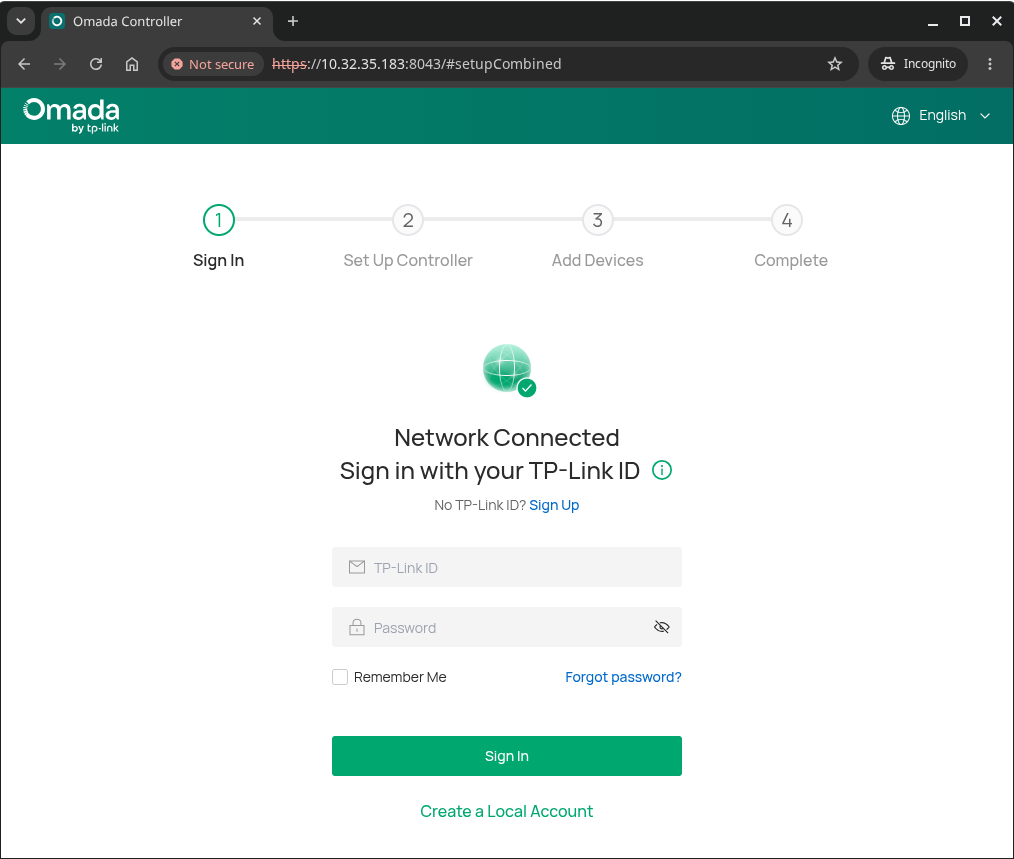
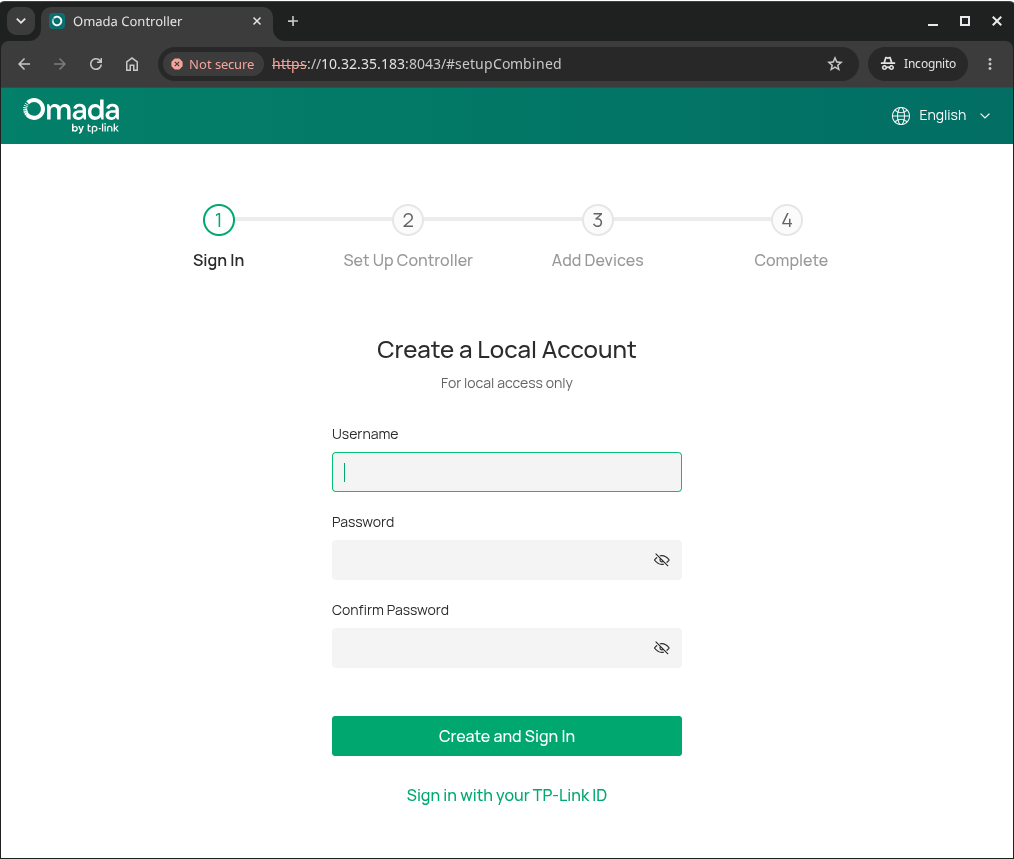
Kies een gebruikersnaam en wachtwoord. Noteer deze, zodat je jezelf niet buitensluit van de controller.
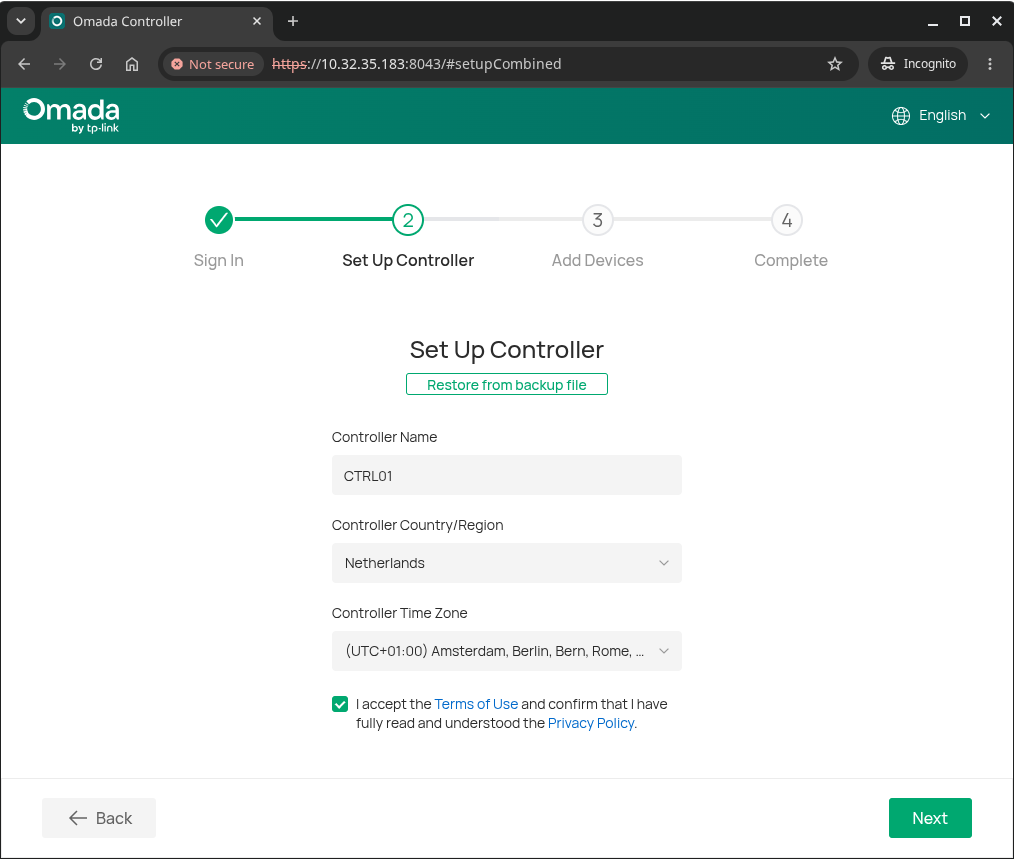
Er worden een aantal opties geboden om verder te gaan. Het is bijvoorbeeld mogelijk om een back-up terug te zetten of om details zoals de naam van de controller in te voeren.
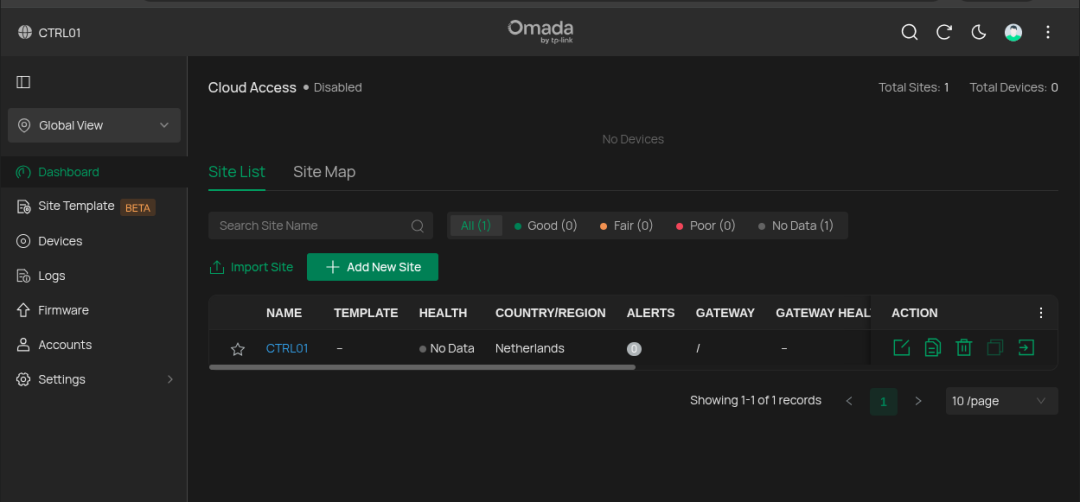
Na het afronden van de initiele configuratie, kun je naar het dashboard navigeren.
Een tip is om van light naar dark mode over te schakelen. Maar dat is een kwestie van voorkeuren. Persoonlijk vind ik het prettig om 's avonds dark mode te gebruiken.